Query Understanding
Query Understanding (QU) helps shoppers find what they mean, not just what they type. It interprets user intent, refines the query if needed, and can automatically apply filters or boosts before search retrieval and ranking.
For e-commerce use cases, QU identifies entities such as brand, color, product type, size, style, or model within a query.
For example, the query "garmin c340 gps" can be interpreted as:
- Brand = garmin
- Model = c340
- Type = gps
Query Tagging is the core capability used by Query Understanding (QU) to analyze a query, segment it into meaningful components, and assign semantic labels to the relevant product attributes. This section explains how Query Understanding works in Find, how to enable it, and how to configure Query Tagging operations.
How Query Understanding Works in Find
- A dedicated item type
querytagstores named-entity documents in the Search System. - When creating a snapshot, include both the product property definitions and the querytag property definition collection. This enables the search system to compute and store tag scores.
- The Catalog Tagger collection is derived from product data and updates automatically when catalog data changes.
Note: Price intent (for example, SortOrder with price semantics) is a separate capability and may be enabled in subsequent iterations.
Prerequisites
Before enabling Query Understanding, configure the required query tagging settings in the Streaming Property Service, including:
Create a snapshot with product, category, and property definition collection:
Enable Query Understanding
- Contact Algonomy Customer Support team to enable the Query Understanding feature in the platform.
- Create a Query Tag Property Collection to define
querytagfields. - Update product property definitions to mark applicable fields as
queryTaggableand ensure they are filterable and/or facetable. - Create and complete a snapshot that includes product, category, and querytag property definition collections, then ingest the catalog.
- Validate the configuration using the Find API by inspecting the
queryUnderstandingsection in the response.
Query Tagging Operations
The table below summarizes the configurable operations that Query Tagging can perform and how they affect search behavior.
|
Feature |
Configuration |
Description |
Example |
|---|---|---|---|
|
Boost |
|
Increases ranking for products matching tagged attributes (applies Solr boost query |
query=men shirts, in catalog tagger, men matches with querytag=men q=men shirts&bq=Gender:"men"^20 Gender:men gets additional boost of 20 |
|
Filter |
|
Applies filters to matched attributes. Both flags must be true for this feature to run. If Use |
query=apple mobile, in catalog tagger, apple matches with querytag=apple q=apple mobile&fq=product_brand:"apple" Note: System converts from |
|
Exclude |
Default: false |
Removes the query tag value from the search query. Helps avoid zero results when the property is not searchable and Improves performance by trimming long queries. |
query=low rise jeans, in catalog tagger, low rise matches with Feature_Length=low rise q=jeans&bq=Feature_Length:"low rise"^4 If Feature_Length is not searchable and Example: Trimmed query:
|
|
psDisable |
Default: false |
Removes the matched query tag property from personalization boosts ( Ensures explicit shopper intent overrides inferred personalization intent. |
Shopper previously clicked men’s Levi’s jeans, then searches Without psDisable:
With psDisable=true:
|
|
Off-menu removal |
Enabled by default |
If Query Tagger identifies a field value, the off-menu filter is skipped and the field is applied directly to Solr when filtering is enabled. |
|
|
Multi Token Match |
|
Allows matching multiple related query tags instead of only the closest term. Use carefully, as unintended matches may occur. |
Query: multiTokenMatch=false: Matches only Kurta multiTokenMatch=true: Matches Kurta and Kurta Set Limitation: |
Find API Response with Query Understanding Details
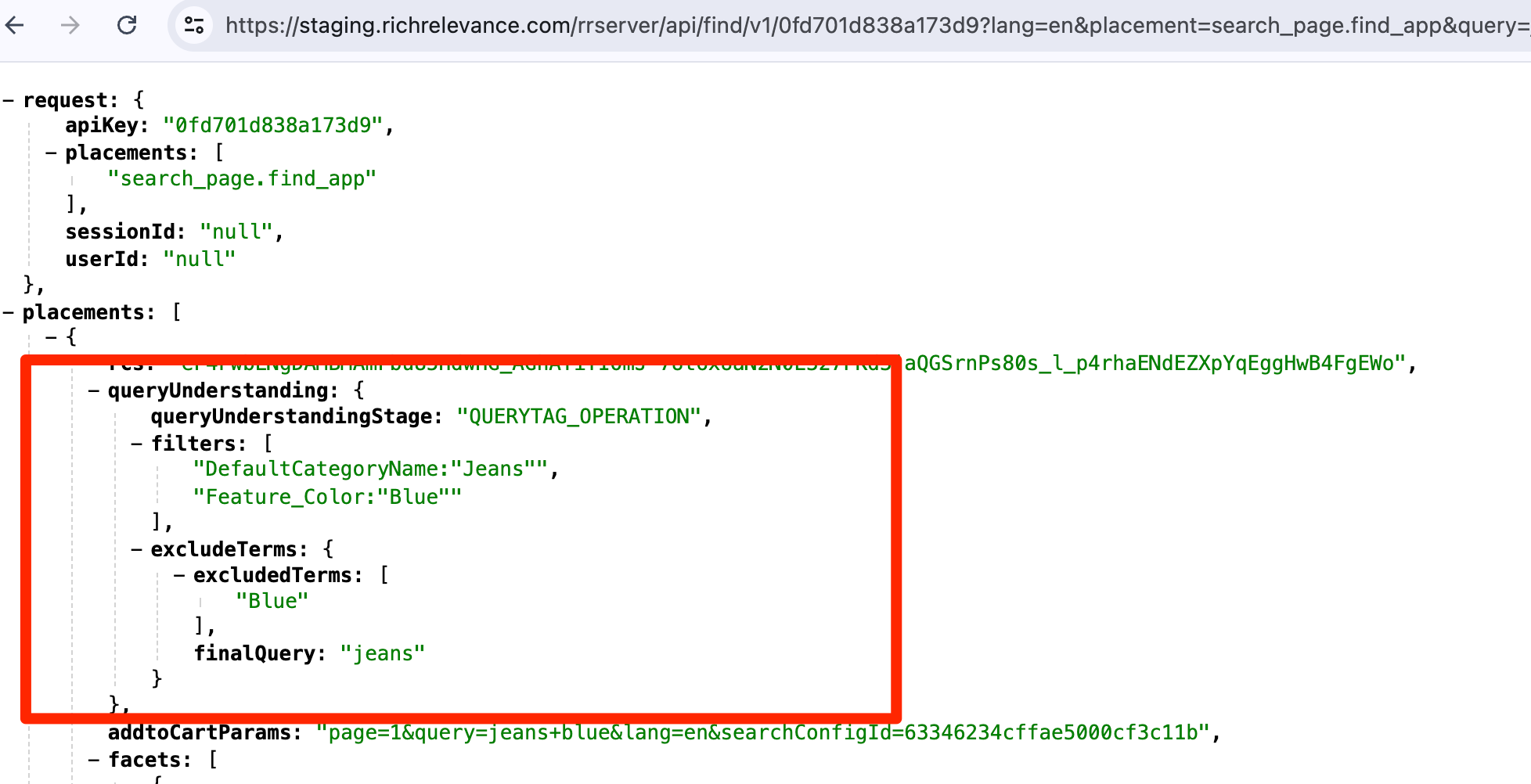
The following example shows how the Find API response changes when Query Understanding is enabled. It helps you understand how the query is interpreted to improve search relevance.
Query Understanding Use Cases
Query Understanding can be enabled for individual features through configuration in the Search system. For assistance with setup, contact your Customer Support team.
During testing and refinement, you can also provide the same Query Understanding settings directly in the Find API as optional parameters.
You can validate the following use cases using Find API requests. For each use case, begin with the sample configuration provided and adjust boost values or filter settings as needed by using the specified syntax.
Use Case: Boost
Configuration Syntax
searchConfig.queryUnderstanding={"tagging":{"queryEnabled":true,"querytagField":"querytag_name","querytagPropertyField":"attribute","querytagSettings":{"product":{"properties":{"Feature_Color":{"boost":20,"filter":false},"DefaultCategoryName":{"boost":20,"filter":false}}}}}}
Example full Find API request - https://recs.richrelevance.com/rrserver/api/find/v1/<apikey>?lang=en&placement=placementId&query=jeans+blue&rows=30&searchConfig.queryUnderstanding={"tagging":{"queryEnabled":true,"querytagField":"querytag_name","querytagPropertyField":"attribute","querytagSettings":{"product":{"properties":{"Feature_Color":{"boost":20,"filter":false},"DefaultCategoryName":{"boost":20,"filter":false}}}}}}
Query Understanding Response Applied
{
"queryUnderstandingStage": "QUERYTAG_OPERATION",
"boost": [
"DefaultCategoryName:\"Jeans\"^20.0",
"Feature_Color:\"Blue\"^20.0"
]
}
Use Case: Filter
Configuration Syntax
searchConfig.queryUnderstanding={"tagging":{"queryEnabled":true,"querytagField":"querytag_name","querytagPropertyField":"attribute","querytagSettings":{"product":{"properties":{"Feature_Color":{"filter":true},"DefaultCategoryName":{"filter":true}}}}}}
Example full Find API request - https://recs.richrelevance.com/rrserver/api/find/v1/<apikey>?lang=en&placement=placementId&query=jeans+blue&rows=30&searchConfig.queryUnderstanding={"tagging":{"queryEnabled":true,"querytagField":"querytag_name","querytagPropertyField":"attribute","querytagSettings":{"product":{"properties":{"Feature_Color":{"filter":true},"DefaultCategoryName":{"filter":true}}}}}}
Query Understanding Response Applied
{
  "queryUnderstandingStage": "QUERYTAG_OPERATION",
  "filters": [
    "DefaultCategoryName:\"Jeans\"",
    "Feature_Color:\"Blue\""
  ]
}
Use Case: Exclude
Configuration Syntax
searchConfig.queryUnderstanding={"tagging":{"queryEnabled":true,"querytagField":"querytag_name","querytagPropertyField":"attribute","querytagSettings":{"product":{"properties":{"Feature_Color":{"exclude":true},"DefaultCategoryName":{"exclude":false}}}}}}
Example full Find API request - https://recs.richrelevance.com/rrserver/api/find/v1/<apikey>?lang=en&placement=placementId&query=jeans+blue&rows=30&searchConfig.queryUnderstanding={"tagging":{"queryEnabled":true,"querytagField":"querytag_name","querytagPropertyField":"attribute","querytagSettings":{"product":{"properties":{"Feature_Color":{"exclude":true},"DefaultCategoryName":{"exclude":false}}}}}}
Query Understanding Response Applied
{
  "queryUnderstandingStage": "QUERYTAG_OPERATION",
  "excludeTerms": {
    "excludedTerms": [
      "Blue"
    ],
    "finalQuery": "jeans"
  }
}
Use Case: Boost, Filter, and Exclude Together
Configuration Syntax
searchConfig.queryUnderstanding={"tagging":{"queryEnabled":true,"querytagField":"querytag_name","querytagPropertyField":"attribute","querytagSettings":{"product":{"properties":{"Feature_Color":{"boost":20,"filter":true,"exclude":true},"DefaultCategoryName":{"boost":20,"filter":true,"exclude":false}}}}}}
Example full Find API request - https://recs.richrelevance.com/rrserver/api/find/v1/<apikey>?lang=en&placement=placementId&query=jeans+blue&rows=30&searchConfig.queryUnderstanding={"tagging":{"queryEnabled":true,"querytagField":"querytag_name","querytagPropertyField":"attribute","querytagSettings":{"product":{"properties":{"Feature_Color":{"boost":20,"filter":true,"exclude":true},"DefaultCategoryName":{"boost":20,"filter":true,"exclude":false}}}}}}
Query Understanding Response Applied
{
  "queryUnderstandingStage": "QUERYTAG_OPERATION",
  "boost": [
    "DefaultCategoryName:\"Jeans\"^20.0",
    "Feature_Color:\"Blue\"^20.0"
  ],
  "filters": [
    "DefaultCategoryName:\"Jeans\"",
    "Feature_Color:\"Blue\""
  ],
  "excludeTerms": {
    "excludedTerms": [
      "Blue"
    ],
    "finalQuery": "jeans"
  }
}
Use Case: Multi Token Match
Configuration Syntax
searchConfig.queryUnderstanding={"tagging":{"queryEnabled":true,"querytagField":"querytag_name","querytagPropertyField":"attribute","enableFilters":true,"enableTaggedFilters":true,"querytagSettings":{"product":{"properties":{"DefaultCategoryName":{"boost":0,"filter":true,"multiTokenMatch":true}}}},"multiTokenSettings":{"filterField":"querytag_shingle","additionalFieldPrefix":"search_source_attribute_"}}}
Example full Find API request - https://recs.richrelevance.com/rrserver/api/find/v1/<apikey>?lang=en&placement=placementId&query=jeans+blue&rows=30&searchConfig.queryUnderstanding={"tagging":{"queryEnabled":true,"querytagField":"querytag_name","querytagPropertyField":"attribute","enableFilters":true,"enableTaggedFilters":true,"querytagSettings":{"product":{"properties":{"DefaultCategoryName":{"boost":0,"filter":true,"multiTokenMatch":true}}}},"multiTokenSettings":{"filterField":"querytag_shingle","additionalFieldPrefix":"search_source_attribute_"}}}
Query Understanding Response Applied
{
  "queryUnderstandingStage": "QUERYTAG_OPERATION",
  "filters": [
    "DefaultCategoryName:\"Shirts\"",
    "DefaultCategoryName:\"Formal\\ Shirts\""
  ],
  "excludeTerms": {}
}
Validate Using Find API
When QU is enabled, the Find API response includes a queryUnderstanding section showing:
- Applied boosts
- Applied filters
- Excluded terms
- Reformulated queries
- Current execution stage (for example,
QUERYTAG_OPERATION)
This information helps with debugging, optimization, and optional UI messaging such as Showing results for "blue jeans".
Best Practices
- Start with a small set of high-value attributes such as
product_category_name,product_brand,Gender, and key style/color attributes. - Use Exclude with Boost for non-searchable attributes to avoid zero-result scenarios while still improving relevance.
- Enable
psDisablefor intent-critical attributes such asGenderwhen explicit query intent should override historical personalization. - Use multi-token matching cautiously and validate outcomes to prevent unintended over-matching.
- Control QU filtering dynamically using
searchConfig.queryUnderstanding.tagging.enableFiltersfor safe experimentation.